
How to Connect Instagram to Facebook Business Page
Linking your Instagram account to a Facebook Page is a one-time setup that unlocks cross-posting, a unified inbox in Meta Business Suite, and the ability to run Instagram ads from Ads Manager. If you’ve been managing them separately, this connection is what brings everything under one roof.
There are three reliable ways to do it. Start with Method 1 – it’s the fastest for most people
Before You Start: Two Requirements
Both of these must be true before any method will work:
- Your Instagram must be a Professional account – either Business or Creator. A personal Instagram account cannot be linked to a Facebook Page. If you’re still on a personal account, go to Settings → Account type and tools → Switch to professional account in the Instagram app.
- You must have admin (full control) access to the Facebook Page. Editor, moderator, or analyst roles won’t work – the connection option simply won’t appear for those roles.
Ways to Link Instagram to Facebook Business Page
Method 1: Connect from the Instagram App (Recommended)
This is the quickest route and works on both iOS and Android.
- Open Instagram and go to your profile.
- Tap on three line at top right most and go in Settings and activity section.
- Scroll down to Business tools and controls and tap Connect to Facebook Page option.
- A popup appears.
- Log in to Facebook using the account that has admin access to your Page.
- Choose the Facebook Page you want to connect.
- Tap Connect (or Next) to confirm.
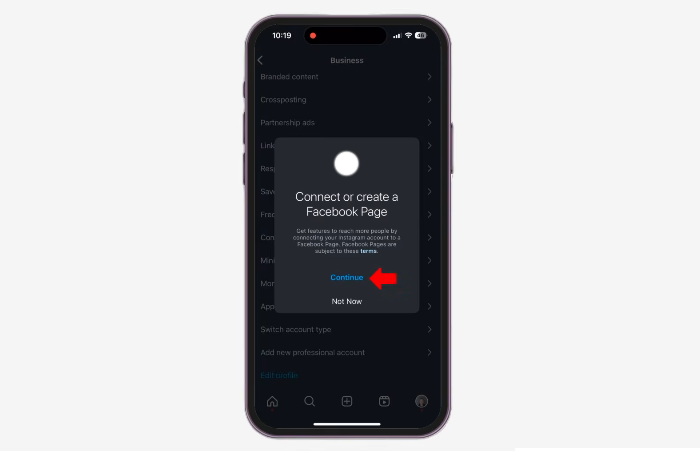
That’s it. If you don’t see a Public business information section in Edit Profile, your Instagram is still a personal account convert it to Business or Creator first, then come back to this step.
Note: If the Facebook Page you want to connect belongs to a Meta Business Portfolio (formerly Business Manager), you’ll also be prompted to add your Instagram account to that Business Portfolio during step 6. Accept the prompt to complete the connection properly.
Method 2: Connect from Facebook Page Settings
Use this method if you prefer working from a desktop, or if the Instagram app method didn’t work for you.
- Log in to Facebook and switch to your business Page (click your profile photo in the top right and select the Page).
- Click Settings & Privacy → Settings.
- In the left menu under Settings and privacy, scroll down and click Linked accounts.
- Select Instagram.
- Click Connect account.
- A popup will appear, log in to your Instagram account.
- Review the permissions (including message access), then click Confirm.
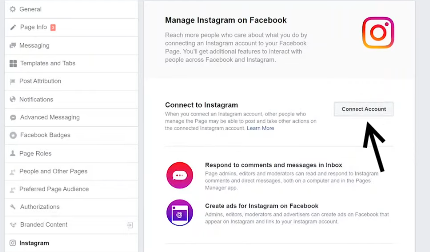
Once confirmed, your Instagram account is linked to the Page. The Allow access to messages option during step 7 controls whether Instagram DMs appear in your Facebook/Meta Business Suite inbox — enable it if you want unified messaging.
Method 3: Connect via Meta Business Suite
If your Page is already inside a Meta Business Portfolio and you want to connect Instagram at the business level (useful for agencies or multi-Page setups), use Meta Business Suite.
- Go to business.facebook.com and log in.
- Make sure you’re in the correct Business Portfolio (check the top left).
- In the left menu, scroll down to Accounts and click Instagram accounts.
- Click the blue + Add button.
- Read the terms, check the box to agree, and click Claim Instagram Account.
- Log in to your Instagram account when prompted.
- Confirm the connection in the popup and click Done.
Learn how to generate facebook lead ads to grow your business.
Verify the Connection
After any of the three methods, confirm it worked:
- In Instagram, go to Edit Profile → Public business information → Page. You should see your Facebook Page name listed there.
- In Facebook Page settings, go to Settings → Linked accounts. Instagram should appear as connected.
- In Meta Business Suite, your Instagram account will appear alongside your Facebook Page in the accounts panel.
What You Can Do After Connecting
The connection itself does nothing on its own, it’s a gate that opens access to several features. Here’s what becomes available and how to actually use each one.
Cross Post Content Between Platforms
Once linked, you can publish to both Facebook and Instagram from a single composer instead of uploading separately to each app.
Read our detailed guide on: How to Upload Photos on Instagram via Desktop
Run Instagram Ads from Meta Ads Manager
This is one of the most practical reasons to complete the connection. Without it, your only option for Instagram advertising is the basic Boost Post button inside the Instagram app, which gives you limited targeting and no real campaign control.
Manage Messages from One Inbox
Once the connection is live and you’ve enabled message access during setup, Instagram DMs and post comments appear inside Meta Business Suite’s unified inbox alongside Facebook Messenger messages.
This is especially useful for small teams, instead of one person monitoring the Instagram app and another handling Facebook Messenger, everything routes to one place. You can also set up automated responses and assign conversations to team members from Meta Business Suite.
If you didn’t enable message access during setup, you can turn it on later: go to Facebook Page Settings → Linked accounts → Instagram and toggle on message access.
FAQs:
No. Only Business or Creator Instagram accounts can be linked to a Facebook Page.
You need the Admin role.
No. The connection is one-to-one
No. The two accounts remain independent
Not automatically. Cross posting is a separate setting you enable per-post or configure in Meta Business Suite. The connection makes cross posting possible, but posts don’t sync unless you explicitly share them.