
Google Apps Script Cron Job – Schedule Scripts Automatically
If you’ve ever needed to automate a Google Sheet report, send a daily digest from Gmail, or sync data from an external API on a schedule, you’ve already discovered the core problem: Apps Script only runs when you manually trigger it. What you actually want is something that fires on its own, the same way a cron job fires on a Linux server.
Google Apps Script handles this through time driven triggers, which Google’s own documentation explicitly describes as the equivalent of Unix cron jobs.
What Is a Cron Job in Google Apps Script?
In traditional Unix/Linux environments, a cron job is a scheduled command managed by the cron command. You define a schedule using cron syntax and point it at a script or command.
Google Apps Script doesn’t have a command or a cron expression parser, but it offers installable time driven triggers (also called clock triggers) through the ScriptApp service.
The practical result is the same: your function runs automatically on a schedule.
There are two main categories of triggers in Apps Script:
- Simple triggers : built-in, fire on user-driven events (
onOpen,onEdit, etc.), no setup required, but very limited. - Installable triggers : require explicit setup, support time driven schedules, and can call services that require OAuth authorization (like sending email or fetching external URLs).
Read detailed guide on : Google Apps Script for Google Forms – 3 Business Automations
How to Set Up a Google Apps Script Cron Job (UI Method)
This is the quickest way to add a time-driven trigger without writing any setup code.
Step 1: Open Your Apps Script Project
Go to script.google.com and open an existing project, or create a new one. If you’re working from a Google Sheet, go to Extensions → Apps Script.
Step 2: Write the Function You Want to Schedule
You need at least one function defined in your script. This is the function that will be called when the trigger fires.
function myScheduledTask() {
  // Your automation logic goes here
  Logger.log('Trigger fired at: ' + new Date());
}
The function must take no arguments (or accept an optional event object). A function that requires mandatory parameters can’t be called by a trigger.
Step 3: Open the Triggers Panel
In the left sidebar of the Apps Script editor, click the clock icon (Triggers). This opens the triggers management panel.
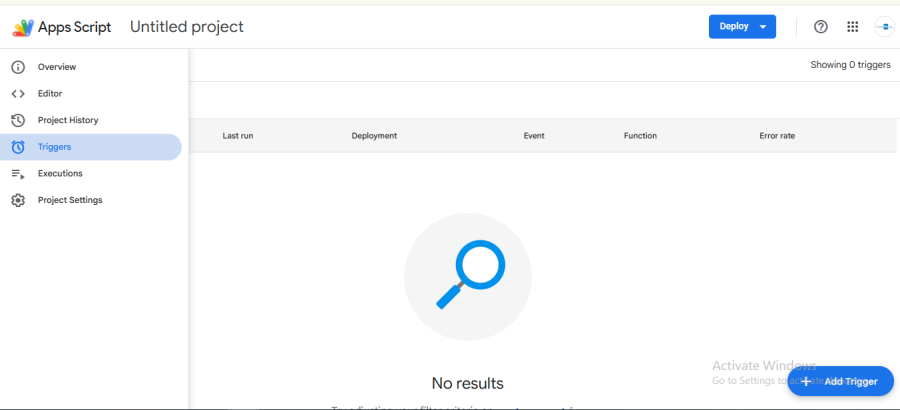
Step 4: Add a New Trigger
Click Add Trigger in the bottom-right corner.
Configure the following fields:
- Choose which function to run : select
myScheduledTask(or your function name) - Choose which deployment should run : leave as “Head” unless you’re on a specific deployment
- Select event source : choose Time-driven
- Select type of time based trigger : choose your interval type (Minutes timer, Hour timer, Day timer, Week timer, or Specific date and time)
- Select interval : choose the specific interval for your chosen type
Click Save. Google will prompt you to authorize the trigger if it requires any OAuth scopes.
How to Create a Cron Job Using Apps Script Code (Programmatic Method)
Setting up triggers through the UI is fine for a one off schedule, but if you’re distributing a script to others, automating setup, or want the trigger configuration to live in version control alongside your code, the programmatic approach is cleaner.
The pattern is always:
ScriptApp.newTrigger('functionName').timeBased().[schedule methods].create()You write a setup function that you run once to install the trigger. After that, the trigger persists independently of your script, you don’t need to call the setup function again unless you delete and recreate the trigger.
Important: Avoid Duplicate Triggers
Running a trigger creation function multiple times without first deleting existing triggers will create duplicates. Each duplicate fires independently, which means your function will run twice (or three times) per interval. Always check for existing triggers before creating new ones, or use a helper function that deletes then recreates.
Here’s a safe pattern:
function installTrigger() {
  // Delete any existing triggers for this function before creating a new one
  const existingTriggers = ScriptApp.getProjectTriggers();
  for (const trigger of existingTriggers) {
    if (trigger.getHandlerFunction() === 'myScheduledTask') {
      ScriptApp.deleteTrigger(trigger);
    }
  }

  // Create the new trigger
  ScriptApp.newTrigger('myScheduledTask')
    .timeBased()
    .everyHours(1)
    .create();
}
Run installTrigger() once from the editor (click Run). After that, the myScheduledTask function will execute automatically every hour.
How to Run Google Apps Script Every 5 Minutes
The most common “rapid polling” schedule. Use everyMinutes(5):
function createEvery5MinutesTrigger() {
  // Remove existing triggers for this function first
  deleteExistingTriggers('checkForNewData');

  ScriptApp.newTrigger('checkForNewData')
    .timeBased()
    .everyMinutes(5)
    .create();
}

function checkForNewData() {
  // Example: fetch an external API and write results to a sheet
  const response = UrlFetchApp.fetch('https://api.example.com/status');
  const data = JSON.parse(response.getContentText());

  const sheet = SpreadsheetApp.getActiveSpreadsheet().getSheetByName('Log');
  sheet.appendRow([new Date(), data.status, data.value]);
}

function deleteExistingTriggers(functionName) {
  ScriptApp.getProjectTriggers()
    .filter(t => t.getHandlerFunction() === functionName)
    .forEach(t => ScriptApp.deleteTrigger(t));
}
How to Run Google Apps Script Every Hour
ScriptApp.newTrigger('myHourlyTask')
  .timeBased()
  .everyHours(1)
  .create();
You can also use everyHours(6) for every 6 hours, everyHours(12) for twice daily, and so on. Unlike everyMinutes(), the everyHours() method accepts any positive integer.
How to Run Google Apps Script Every Day at a Specific Time
To run daily at approximately 9 AM:
ScriptApp.newTrigger('myDailyReport')
  .timeBased()
  .everyDays(1)
  .atHour(9)
  .create();
To be more specific about the time (say, around 9:30 AM), chain nearMinute():
ScriptApp.newTrigger('myDailyReport')
  .timeBased()
  .everyDays(1)
  .atHour(9)
  .nearMinute(30)
  .create();
Remember that nearMinute() adds a ±15 minute window around the specified minute. “Near minute 30” means the trigger can fire anywhere between 9:15 and 9:45. This is by design Apps Script is not meant for sub minute precision scheduling.
If your script depends on the user’s timezone, specify it explicitly:
ScriptApp.newTrigger('myDailyReport')
  .timeBased()
  .everyDays(1)
  .atHour(9)
  .inTimezone('Asia/Kolkata')
  .create();
Google Apps Script Cron Job Example: Automated Weekly Email Report
Here’s a practical, complete example. This script reads data from a Google Sheet, formats a summary, and emails it every Monday at 8 AM.
// Run this function ONCE to install the trigger
function installWeeklyReportTrigger() {
  deleteExistingTriggers('sendWeeklyReport');

  ScriptApp.newTrigger('sendWeeklyReport')
    .timeBased()
    .everyWeeks(1)
    .onWeekDay(ScriptApp.WeekDay.MONDAY)
    .atHour(8)
    .inTimezone('America/New_York')
    .create();

  Logger.log('Weekly report trigger installed.');
}

// This function runs automatically every Monday at ~8 AM
function sendWeeklyReport() {
  const ss = SpreadsheetApp.getActiveSpreadsheet();
  const sheet = ss.getSheetByName('Sales');

  if (!sheet) {
    Logger.log('Sheet "Sales" not found. Aborting.');
    return;
  }

  // Read all data rows (assumes row 1 is headers)
  const data = sheet.getDataRange().getValues();
  const headers = data[0];
  const rows = data.slice(1);

  // Build a simple summary
  const totalRows = rows.length;
  const totalSales = rows.reduce((sum, row) => sum + (Number(row[2]) || 0), 0);

  const subject = 'Weekly Sales Summary – ' + new Date().toDateString();
  const body = `Weekly report as of ${new Date().toDateString()}\n\n`
    + `Total records: ${totalRows}\n`
    + `Total sales: $${totalSales.toFixed(2)}\n\n`
    + 'This is an automated message.';

  // Send to the script owner's email
  MailApp.sendEmail({
    to: Session.getEffectiveUser().getEmail(),
    subject: subject,
    body: body
  });

  Logger.log('Weekly report sent.');
}

// Helper: delete all triggers for a given function name
function deleteExistingTriggers(functionName) {
  ScriptApp.getProjectTriggers()
    .filter(t => t.getHandlerFunction() === functionName)
    .forEach(t => ScriptApp.deleteTrigger(t));
}
Conclusion
Google Apps Script’s time driven triggers give you a practical, zero infrastructure way to schedule recurring tasks inside the Google Workspace ecosystem. The setup is straightforward, either point and click in the editor UI or a few lines of ScriptApp.newTrigger() code and once installed, the trigger runs independently on Google’s infrastructure.